

Settings
The Settings tab controls Akema’s behavior in one place: how many messages it keeps and where, how much it sends to each browser, how it copes with busy topics, and how traps are checked. Every buffer has a limit you can see and change, so Akema’s memory use is something you set, not something you hope for.
You can tune the same Akema for a quiet development topic on a laptop or a firehose on a shared ops screen, without restarting it.
How settings work
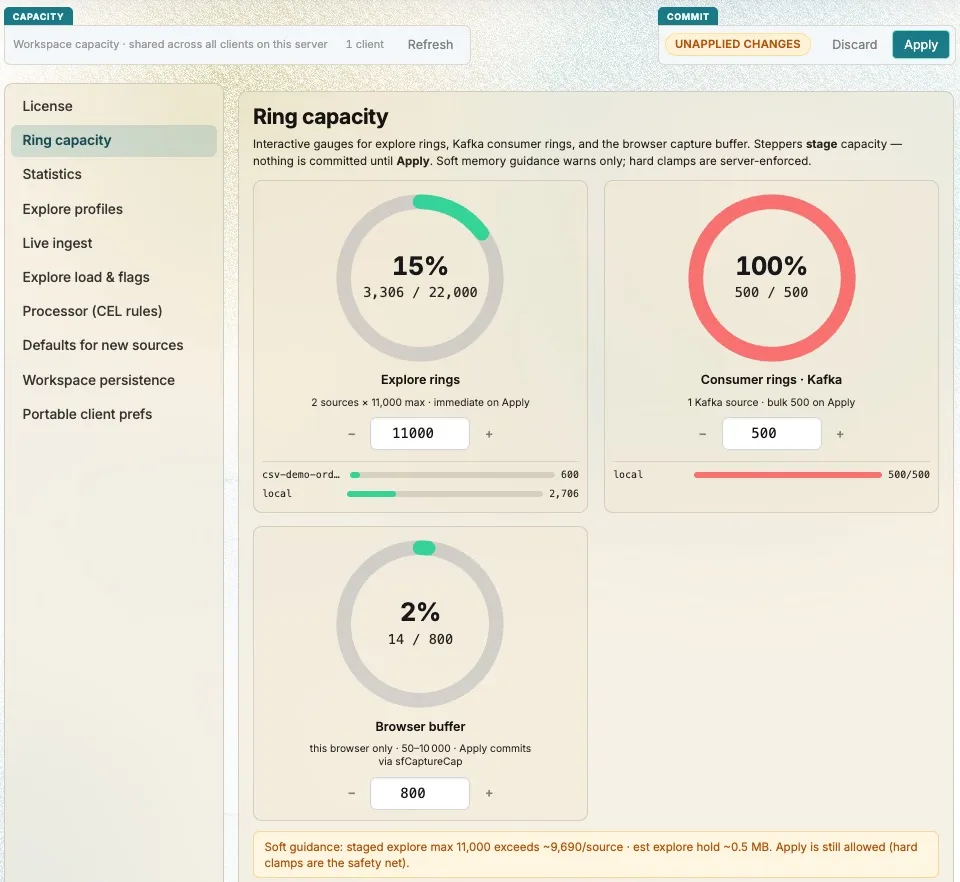
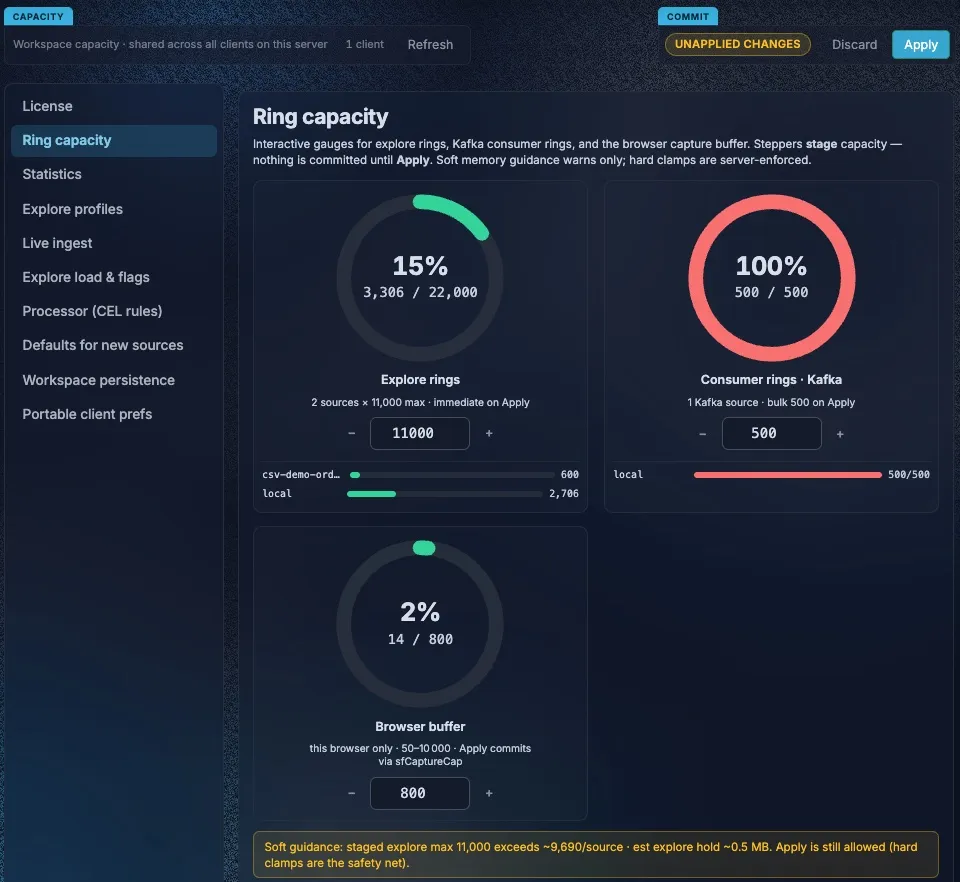
Section titled “How settings work”Stage, then Apply. Changing a setting doesn’t change anything yet. The change is staged, and Unapplied changes appears next to Apply. Choose Apply to commit everything at once, or Discard to go back to the current values. Refresh reloads the current values from Akema.
Settings belong to the workspace. Each workspace keeps its own settings, saved in its folder. They’re restored when Akema restarts, and switching workspace switches to that workspace’s settings.
Most settings affect everyone. Akema serves every browser that opens it from one process, so most settings change what all of them see. The banner at the top of the tab shows how many browsers are connected. Only the window that’s editing can choose Apply; other windows, and people signed in as viewers, see the settings without the controls to change them. Two settings affect only your browser, and say so: Browser buffer and Explore engine RAM.
Not everything takes effect right away. Each setting says when it applies:
| Takes effect | Settings |
|---|---|
| Immediately on Apply | Explore rings, consumer rings, browser buffer, live ingest, processor, adaptive sampling |
| The next time a browser connects | Inspect seed per source |
| The next Explore Load | Explore load mode, seeding |
| The next Clear | Clear also empties consumer rings |
| The next time a source starts | Fan-in workers |
| New Connect drafts only | Defaults for new sources |
| The next restart or workspace switch | Auto-start saved Kafka connections |
Limits protect you. Every number has a minimum and maximum that Akema enforces. Akema also estimates a safe size from the memory it’s using and shows a Soft guidance warning when you go above it. Soft guidance is advice; you can still apply.
Where Akema keeps messages
Section titled “Where Akema keeps messages”Akema never writes messages to disk. It keeps recent messages in memory, in four places:
| Buffer | What it holds | Default | Set it in |
|---|---|---|---|
| Consumer ring | The newest messages from each Kafka source, on the server | 500 per source | Ring capacity, or Max buffer per source on Connect |
| Explore ring | The messages Explore can Load, with their trap tags, on the server | 10,000 per source | Ring capacity |
| Browser buffer | The messages in this browser tab’s Inspect table | 800 per tab | Ring capacity (this browser only) |
| Inspect seed | How many recent messages per source a browser gets when it connects | 200 per source | Ring capacity |
When a buffer is full, the oldest messages make room for new ones. Bigger buffers mean a longer history to look at and more memory used. The gauges on Ring capacity show how full each buffer is, per source.
Settings reference
Section titled “Settings reference”License
Section titled “License”Shows the trial or license status and this machine’s fingerprint, and imports a license file. See Trial and license.
Ring capacity
Section titled “Ring capacity”| Setting | What it does | Range |
|---|---|---|
| Explore rings | How many messages each source keeps for Explore. All sources together can hold up to 500,000 | 100 to 200,000 per source |
| Consumer rings · Kafka | Resizes the consumer ring of every live Kafka source at once | 50 to 100,000 per source |
| Browser buffer | How many messages the Inspect table keeps in this browser tab. Only affects you | 50 to 10,000 |
| Inspect seed per source | How many recent messages each source sends to a browser when it connects, so a quiet topic isn’t hidden behind a busy one. Refresh Inspect to see the change | 50 to 10,000 |
| Trap-only live ingest | Stops streaming every message to browsers. Trap matches, counters, Trap Flow and Explore keep working | On or off |
| Explore engine RAM | Memory for the database Explore runs in this browser tab. Applying restarts it, so Load again afterwards. Only affects you | 256 to 1,536 MB, default 1,024 |
Lowering a ring asks you to confirm, because the oldest messages above the new size are dropped.
Statistics
Section titled “Statistics”A live view of what Akema is holding: server memory, connected browsers, messages received and the current rate, how full the Explore and consumer rings are, active traps, and this browser’s buffer. Guidance estimates the memory the rings use and the soft maximum per source. Check it before and after a change.
Explore profiles
Section titled “Explore profiles”One-click combinations of the Explore load and flags settings:
| Profile | Load mode | Seed from consumers | Clear empties consumer rings | Replay with trap tags |
|---|---|---|---|---|
| legacy (default) | auto | Off | Off | Off |
| balanced | auto | On | Off | On |
| server | server | On | On | On |
Choose balanced for most work. Choose server when you want Explore to always load the full server-side history, and Clear to start everything fresh.
Live ingest
Section titled “Live ingest”These settings keep Akema caught up on busy Kafka topics without flooding Inspect and Explore.
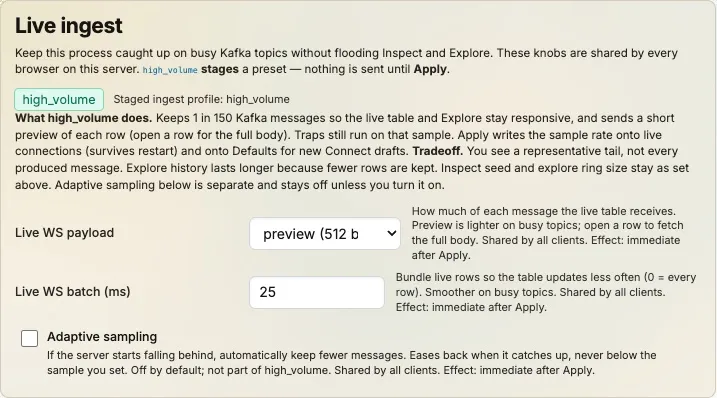
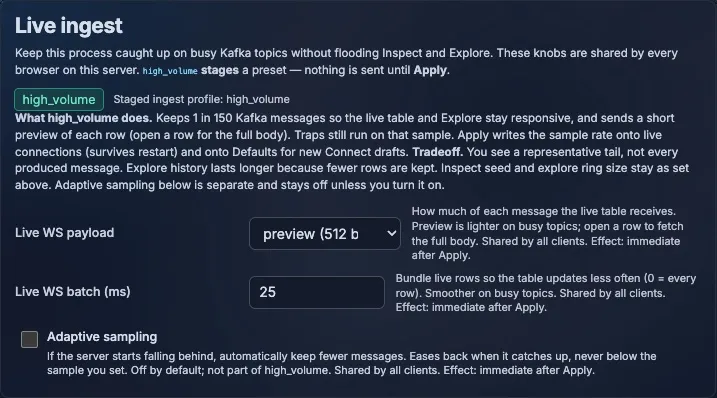
high_volume is a preset for firehose topics. It keeps 1 in every 150 messages from each Kafka source, sends browsers a 512-byte preview of each row instead of the whole message in 25 ms batches, and makes Explore load from the server. Traps run on the sample. Applying it also sets Default consumer sample every N to 150, so new sources inherit it. You see a representative stream rather than every message, and Explore covers a longer stretch of time because fewer messages fill its ring.
| Setting | What it does | Default |
|---|---|---|
| Live WS payload | How much of each message browsers receive live: full, preview (the first 512 bytes; open a row to fetch the rest), or none | full |
| Live WS batch (ms) | Sends live rows in batches, so the table updates less often but more smoothly. 0 sends every row as it arrives | 100 |
| Adaptive sampling | If Akema starts falling behind a busy topic, it doubles the sample automatically, at most every 5 seconds. Once it keeps up for 15 seconds, it halves it again. It never goes below the sample you set. While it’s active, a banner shows the current sample | Off |
Explore load and flags
Section titled “Explore load and flags”These settings are saved when you apply them, but most only change what happens the next time you do something, such as Load or Clear.
| Setting | What it does |
|---|---|
| Explore load mode | Where Load gets messages. server loads the server’s Explore ring, which holds the most. client loads only the messages in this browser’s Inspect table. auto (default) tries the server and falls back to the browser |
| Seed explore rings from consumers | Refills the Explore ring from the consumer rings, for example after Clear, so Explore has recent messages straight away |
| Clear also empties consumer rings | Makes Clear in Inspect empty the consumer rings too, not just the Explore ring |
| WS recent replay uses annotated explore ring | When a browser connects, the recent messages it receives come with their trap tags |
Processor (CEL rules)
Section titled “Processor (CEL rules)”| Setting | What it does | Default |
|---|---|---|
| Processor rule sample (every N msgs) | Checks traps against 1 in every N messages, to save CPU on very busy streams. Messages in between aren’t checked, so traps can miss them. This is separate from consumer sampling, which decides which messages Akema keeps at all | 1 (every message) |
| Dry-run | Checks and counts traps without tagging or highlighting messages, while you tune expressions. Also in the trap editor | Off |
| Fan-in workers | Processes messages from different partitions in parallel, keeping each partition in order. Raise it if a source with many partitions can’t keep up. Takes effect the next time a source starts | 1, up to 64 |
Defaults for new sources
Section titled “Defaults for new sources”Values that new source columns on Connect start with. Existing sources don’t change; use Consumer rings to resize live ones.
| Setting | Default |
|---|---|
| Default max buffer | 500 |
| Default consumer sample every N | 1 |
Workspace persistence
Section titled “Workspace persistence”Auto-start saved Kafka connections, on by default, starts the workspace’s Kafka sources when Akema starts or when you switch to the workspace. Turn it off to open a workspace without connecting to its clusters, for example when a broker is down; then start sources yourself from Connect. Changing it doesn’t stop sources that are already running.
Portable client prefs
Section titled “Portable client prefs”Export and Load a settings file to share your setup or move it to another Akema. You choose what to include: Explore layout and filters, Explore playbooks, Inspect columns, trap rules, redaction profiles (never the correlation key), Connect drafts (never passwords), appearance, Present preferences, Explore field roles and pins. When loading, you choose which parts of the file to apply. The same dialog is in the Display menu.
The file never contains passwords, keys, certificates or messages.
Recipes
Section titled “Recipes”Keep up with a firehose topic
Section titled “Keep up with a firehose topic”- In Live ingest, choose high_volume, then Apply.
- If Akema still falls behind, turn on Adaptive sampling.
- If a source with many partitions still can’t keep up, raise Fan-in workers, apply, and restart the source.
Look further back in Explore
Section titled “Look further back in Explore”- Check Guidance under Statistics for the soft maximum.
- Raise Explore rings, staying under the soft maximum, and Apply.
- Choose the balanced profile so the Explore ring is seeded from the consumer rings.
- Load in Explore.
To cover a longer time on a busy topic, also set a consumer sample, such as Sample every 10 on the source. Explore then holds ten times as much time in the same space.
Watch for rare events on a busy topic
Section titled “Watch for rare events on a busy topic”- Turn on Trap-only live ingest and Apply. Browsers stop receiving every message, but traps check all of them.
- Watch the trap counters and Trap Flow. Choose JSON in Trap Flow to download the recent matches.
Run on a small laptop
Section titled “Run on a small laptop”- Lower Explore rings (for example to 2,000) and Consumer rings (to 200), and Apply.
- Lower Browser buffer and Explore engine RAM in each browser that feels slow.
- Turn off Auto-start saved Kafka connections if a workspace has many sources and you only need some.
Share one Akema on a big screen
Section titled “Share one Akema on a big screen”Settings apply to every connected browser, so set them once on the screen’s Akema. Raise Live WS batch to a few hundred milliseconds for smooth updates, and keep Live WS payload on preview. Teammates who open the same Akema as editors can change their own Browser buffer without affecting the screen.
The first browser to open Akema becomes the editor, so a screen that’s always on can hold that role. With sign-in on, sign the screen in as a viewer. Otherwise, choose Take over from your own browser when you need to make a change.
Limits
Section titled “Limits”| Setting | Minimum | Maximum |
|---|---|---|
| Explore ring, per source | 100 | 200,000 (500,000 across all sources) |
| Consumer ring (Max buffer), per source | 50 | 100,000 (500,000 across all sources) |
| Browser buffer | 50 | 10,000 |
| Inspect seed per source | 50 | 10,000 |
| Consumer or processor sample every N | 1 | 10,000 |
| Live WS batch | 0 ms | 1,000 ms |
| Explore engine RAM | 256 MB | 1,536 MB |
| Fan-in workers | 1 | 64 |